
AI WORKBENCH

Prepare the artwork.
Keep production moving.

Extract prints, remove backgrounds, enhance detail, edit with instructions, expand, crop and vectorize from one workspace. Compare the result, save it, then continue into production.

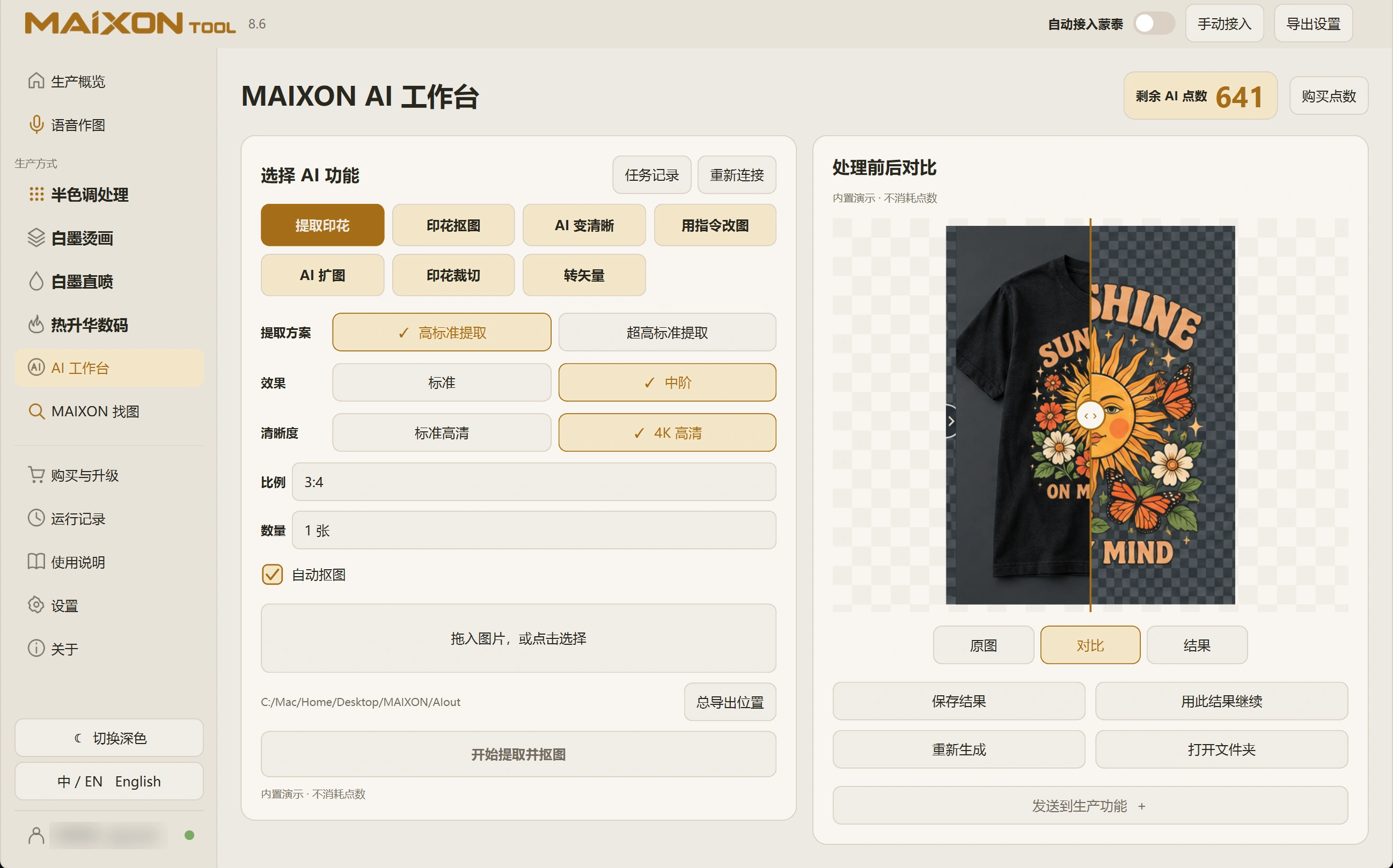
MAIXON TOOL V8.6 Extract Print — light interface
Extract Print

Bring the print out of the picture.

Choose a method and quality to extract artwork from clothing, objects or reference images. Enable automatic background removal when you need transparency.

Explore each capability.

Start your first task in this order.

  1. Choose a tool and import artwork
  2. Review the mode, quality, ratio and credit cost
  3. Run the task and follow its progress
  4. Compare, save or send the result to production

A few details to check.

  • Inspect text, small details, edges and transparency in AI results.
  • Credit costs depend on the tool, settings and quantity shown before submission.
  • AI tools require network access; screen results do not replace a physical print check.

01 · Choose the right tool

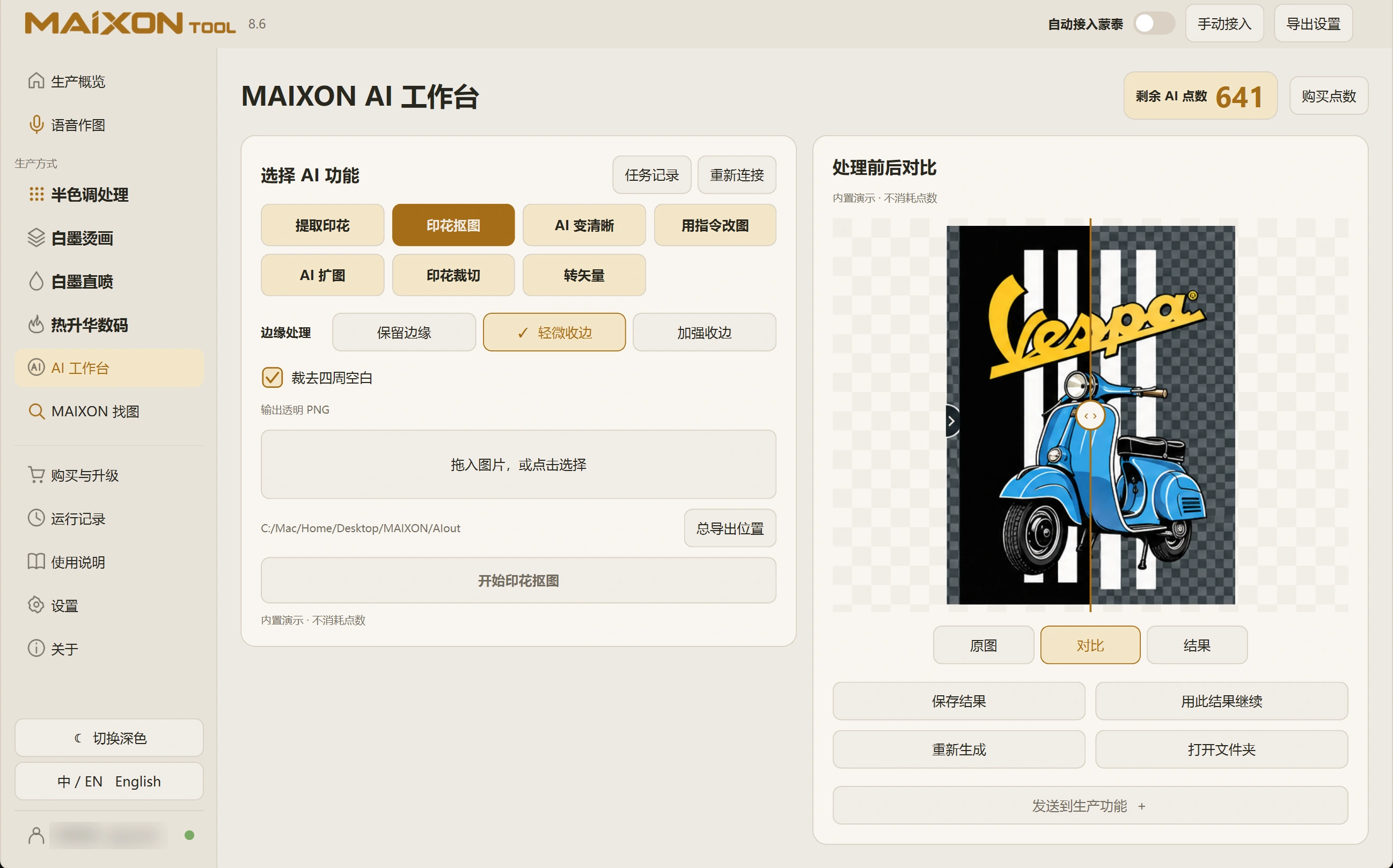
Extract Print isolates the intended graphic; Remove Background prepares transparency. Check what should remain before choosing.

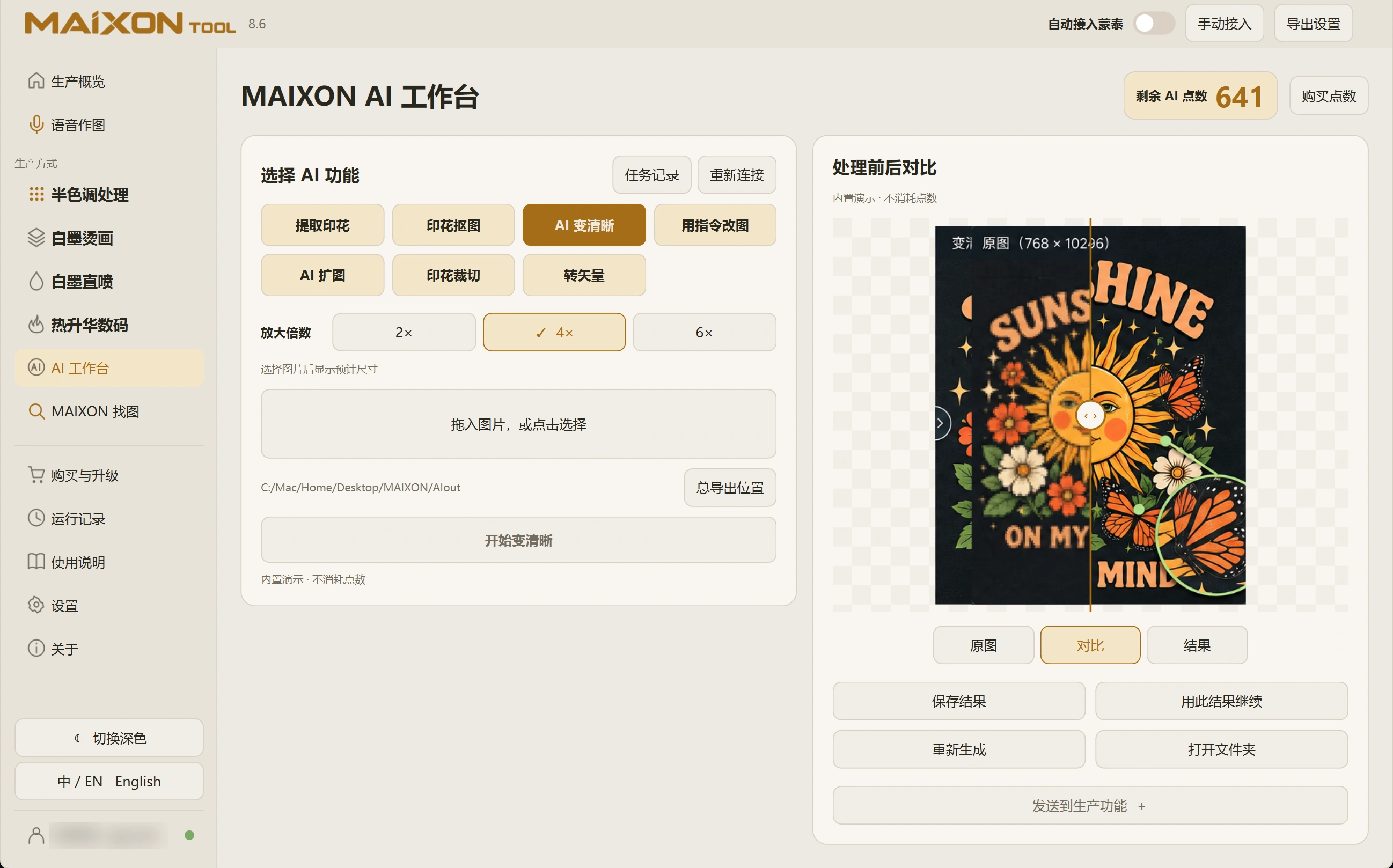
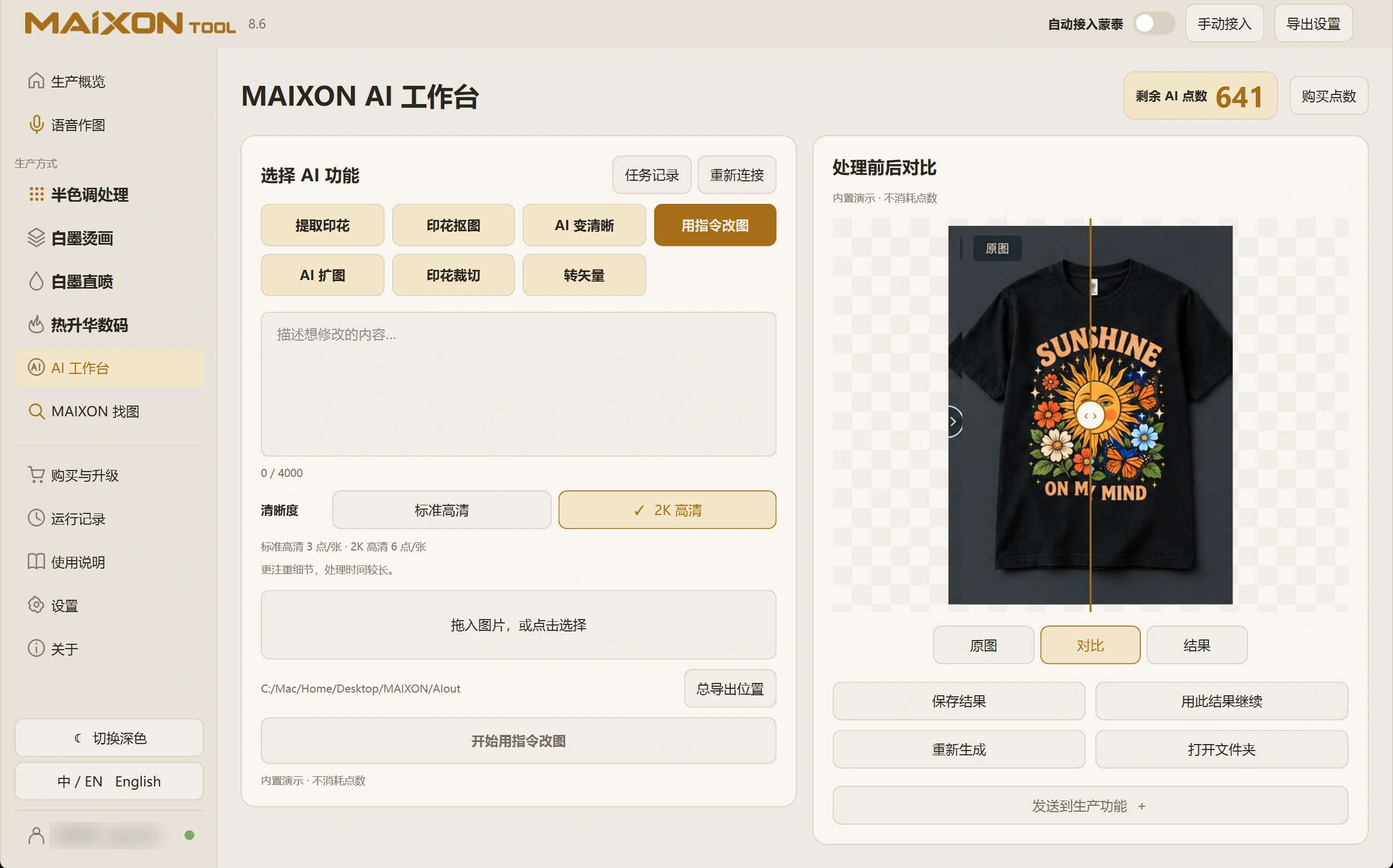
Enhance offers 2×, 4× and 6×. Check actual output pixels and inspect small text. Edit with Instructions should state both the desired change and what must stay.

02 · Expand, crop or vectorize

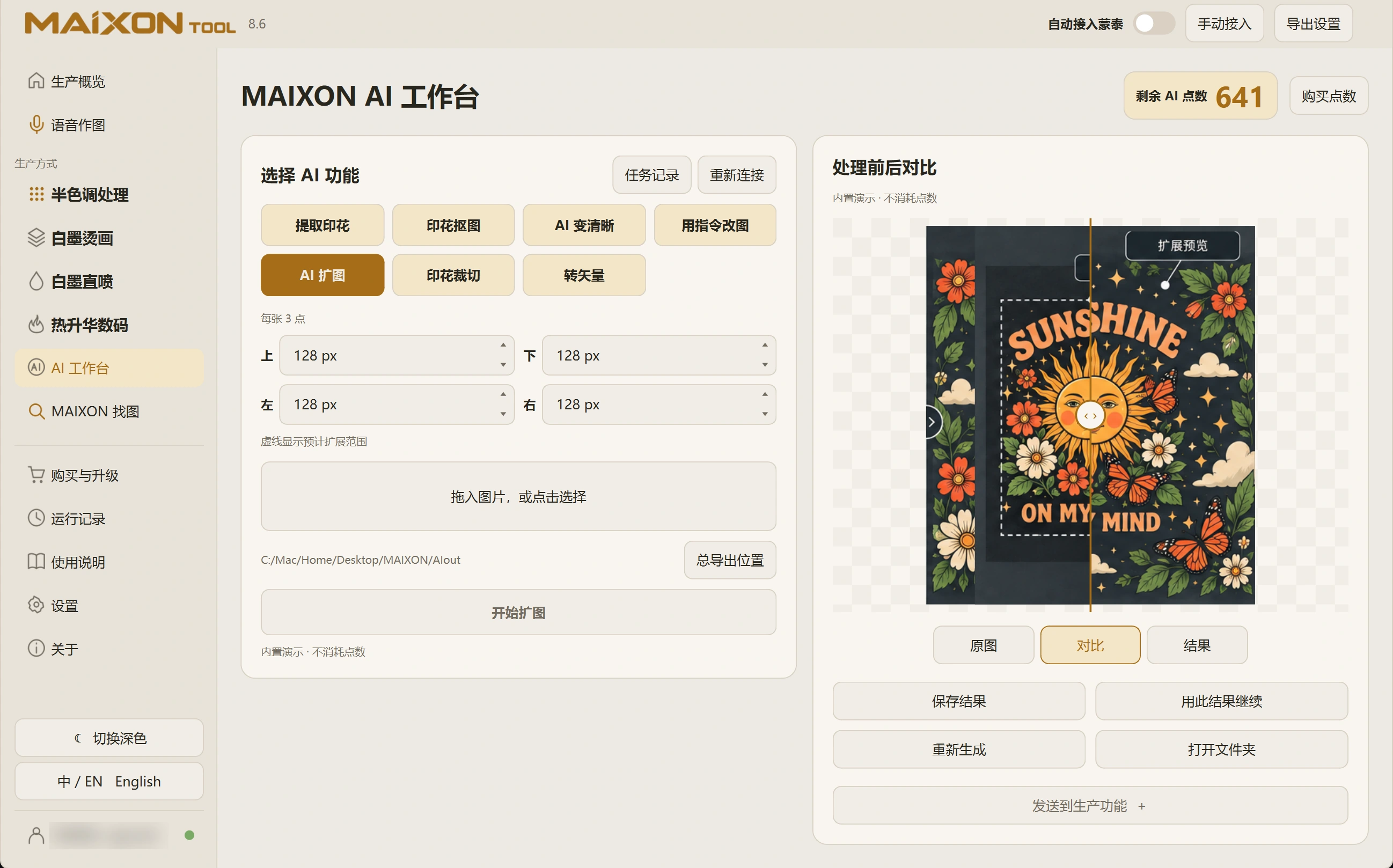
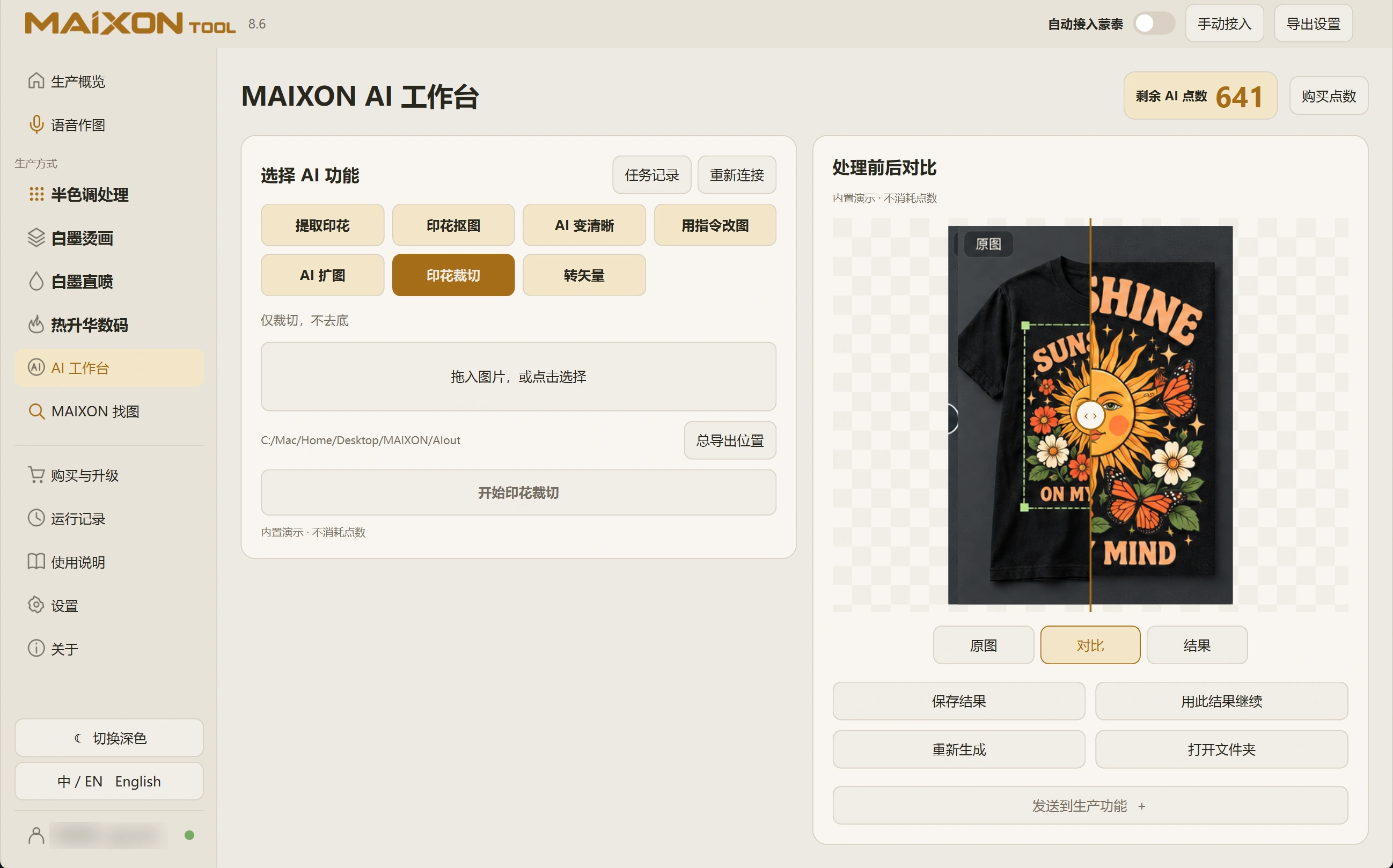
Expand sets additional pixels for each edge. Inspect generated content. Crop automatically isolates a region without removing its background; check the completeness of the result.

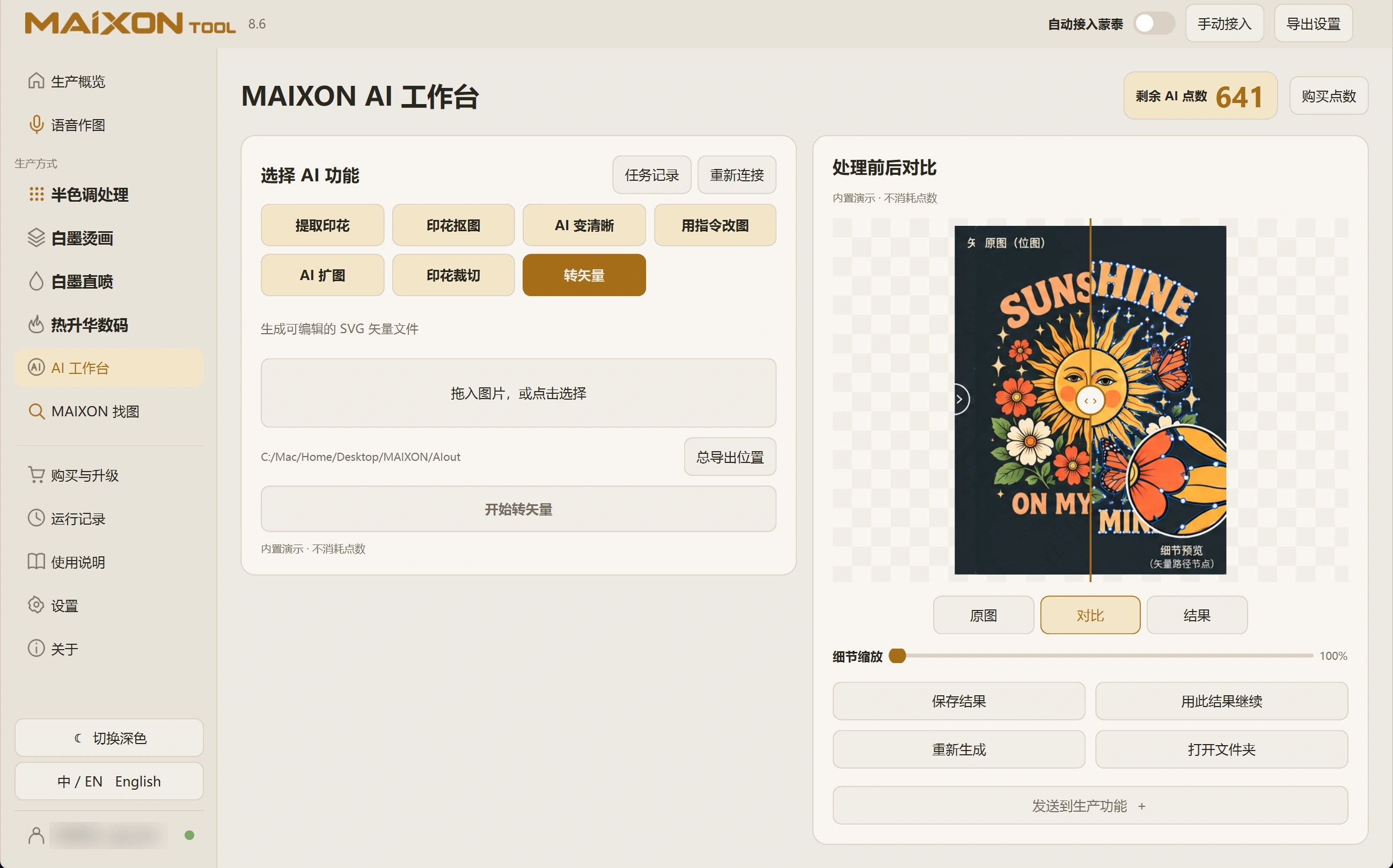
Vectorize produces a vector result that still needs path and detail inspection in a suitable editor.

03 · Check input and cost

Each tool keeps its own input and settings. Confirm the filename after switching tools. Before loading an image, explore the built-in examples; your own artwork appears after import.

Review quality, quantity and credit cost before submitting. Follow task status until completion.

04 · Compare and continue

Switch Original, Compare and Result, and drag the divider. Check edges, lettering and transparent regions in the saved file.

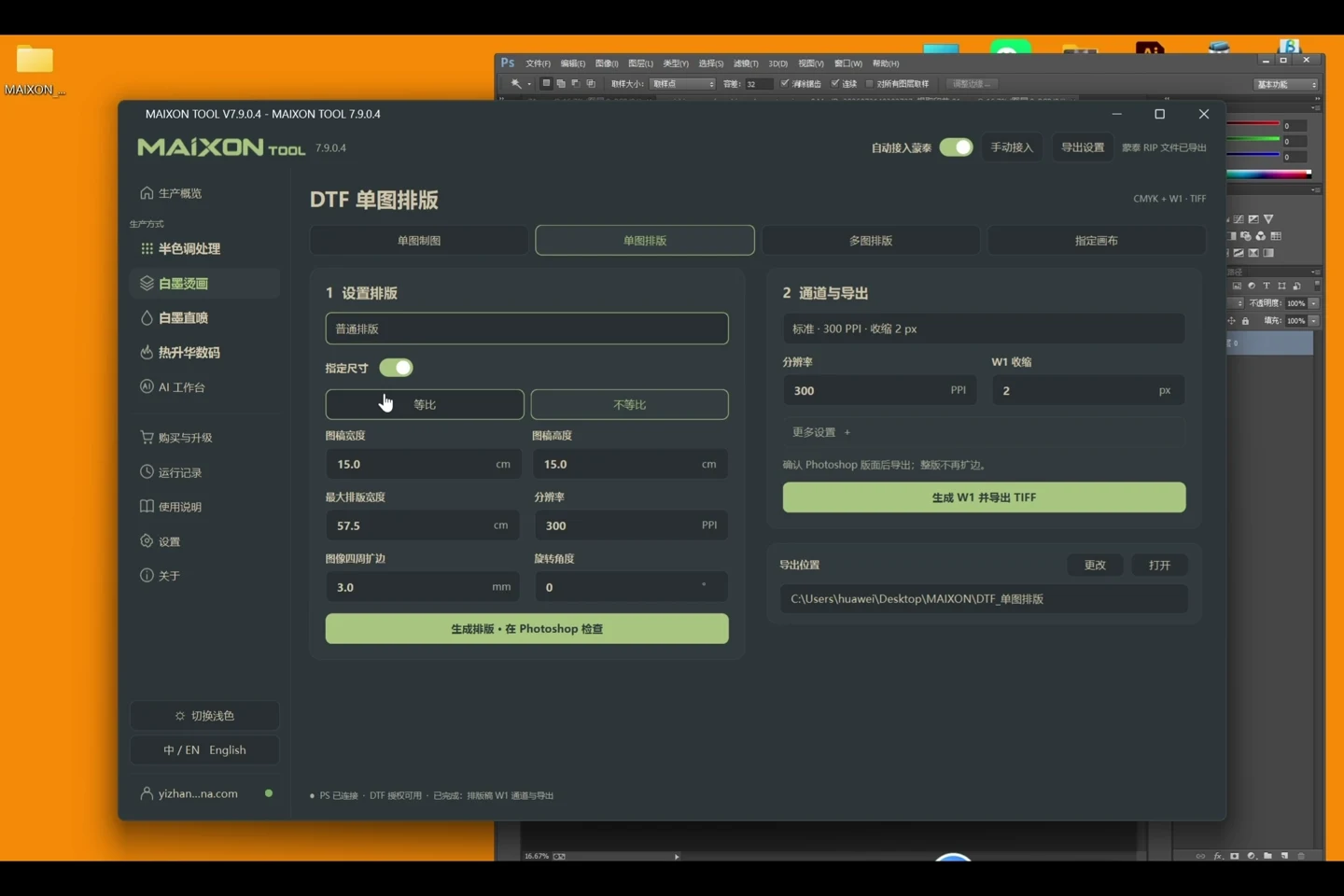
Confirm the saved output before continuing with the result or sending it to a production module. Review size, white ink and layout for that next task.

Choose your operating system

Select the version that matches your computer.

  1. 01

    Windows 7

    V8.3

    Download
  2. 02

    Windows 10

    V8.3

    Download
  3. 03

    Windows 11

    V8.3

    Download
  4. 04

    macOS

    Coming Soon