
01
Start with clear artwork.
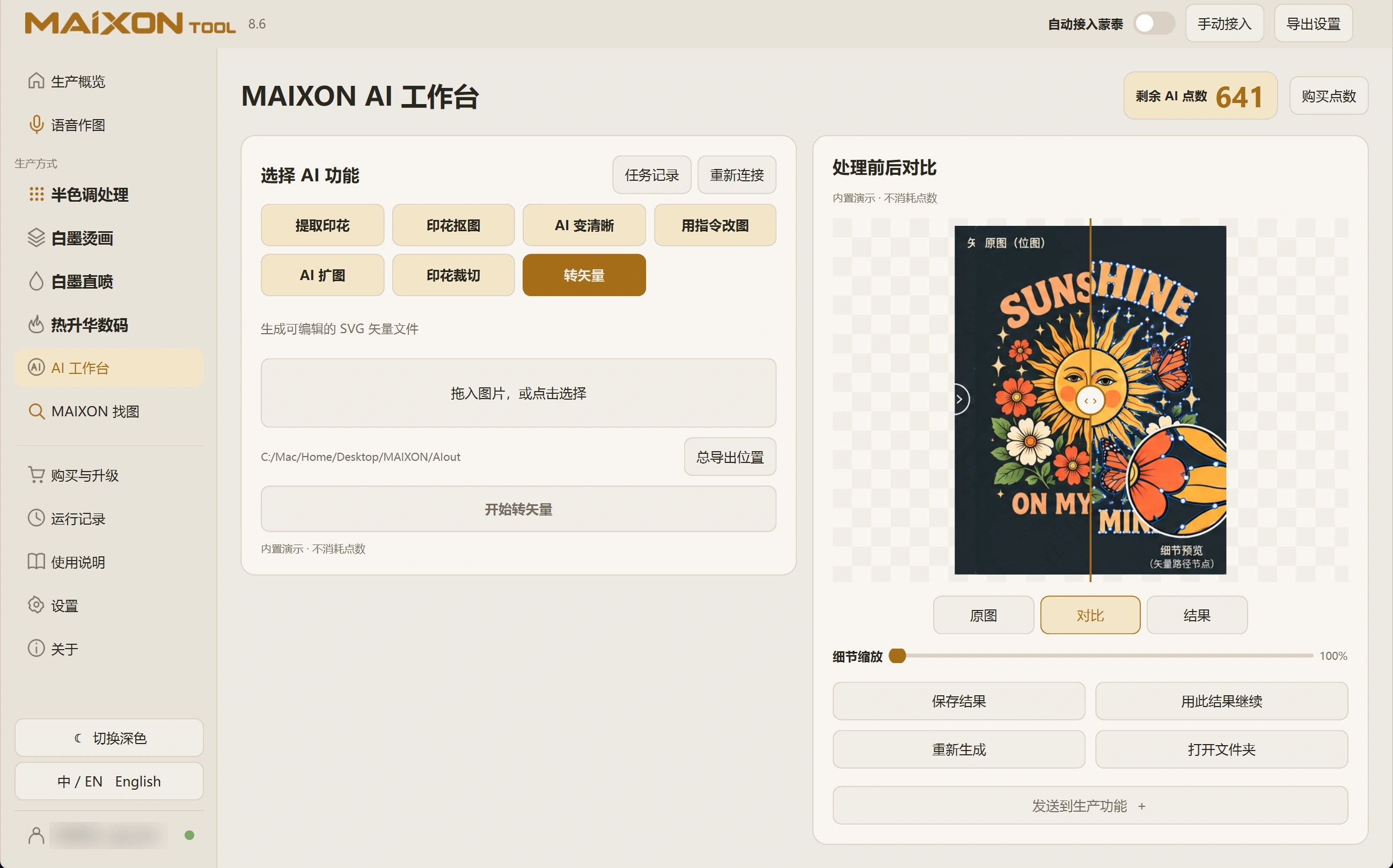
Open Vectorize, import the image and review settings and credit cost before submitting.
Inspect lettering, fine lines and complex gradients individually in the result. A thumbnail cannot show every detail.
02
Inspect and save the SVG.
Compare contours and colors, then save the SVG. Open it in a suitable vector editor to inspect paths and small details.
For print preparation, provide an input format and size supported by the next tool, then check the final production file.