
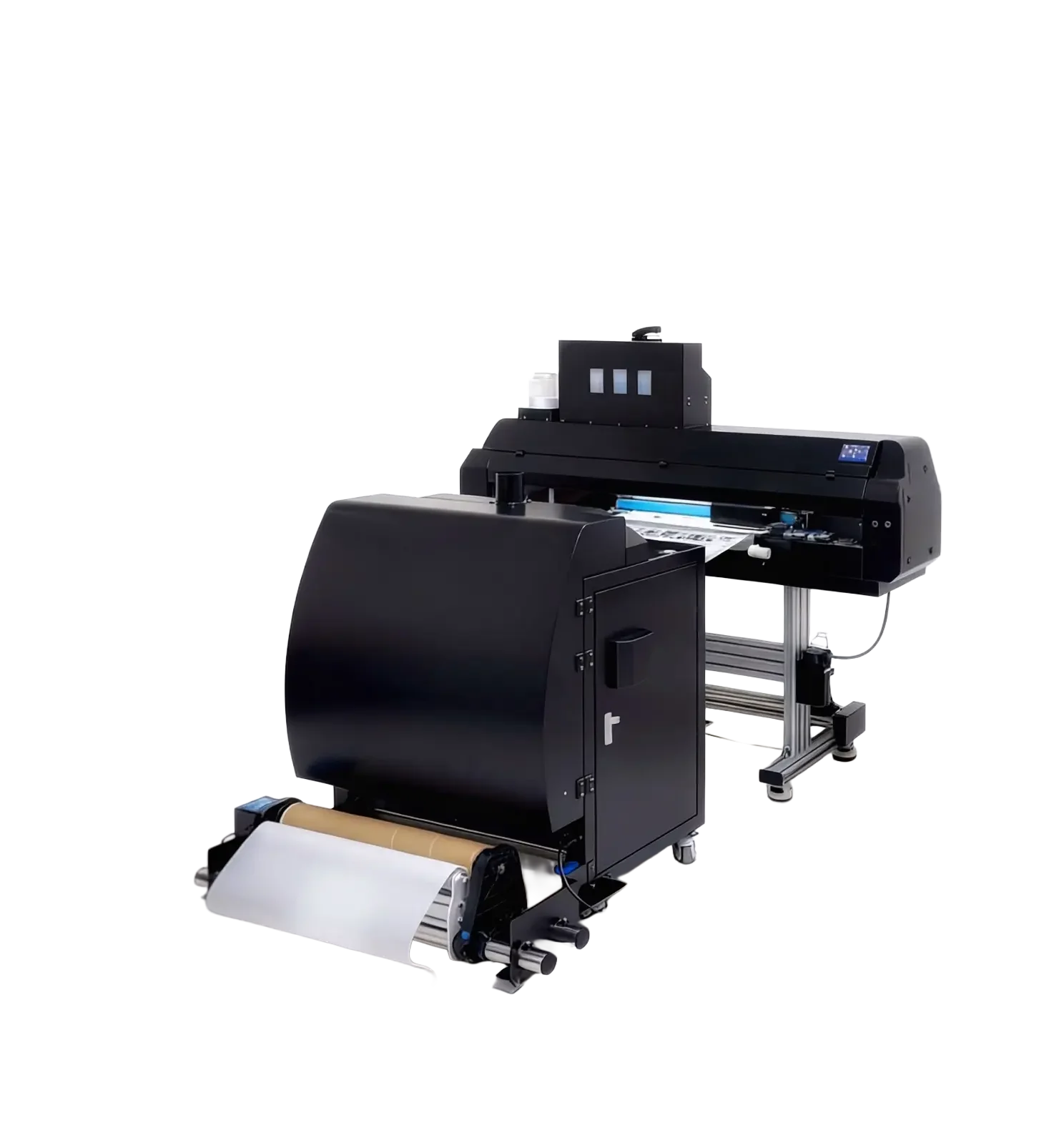
015 m²/h
DFG604
Specialty process platform
Designed for adhesive printing, foil finishing and specialty decorative transfers.
View productMAIXON TOOL V8.6
From finding artwork to preparing the final layout.
Your prepress workflow, in one workspace.
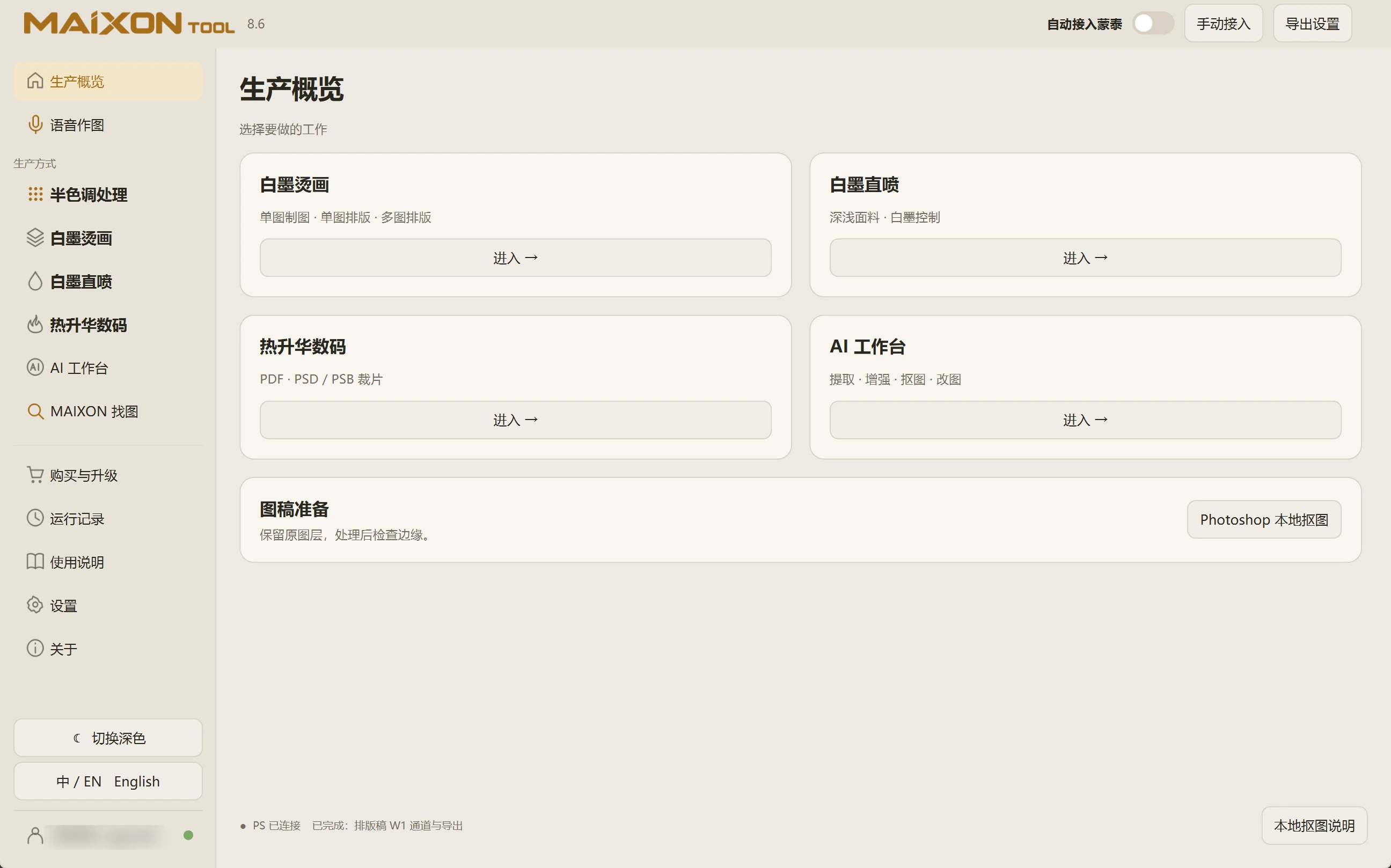
Find artwork. Prepare images, white ink and layouts. Switch between light and dark.
MORE THAN AN IMAGE TOOL
Finding files, setting dimensions, controlling white ink and preparing output — work that used to be scattered now follows a clear path.
MAIXON × MainTop
MAIXON connects preparation before the printer software’s Print button: image processing, white ink, layouts, file output and the handoff to MainTop. Fewer repeated steps. A more continuous preparation workflow.
Explore the workflow →VOICE COMMANDS
Describe dimensions, resolution, white ink and margins in a clear instruction. Review the interpreted task and parameters, then confirm execution. Typed instructions are also supported.
Read the complete walkthrough →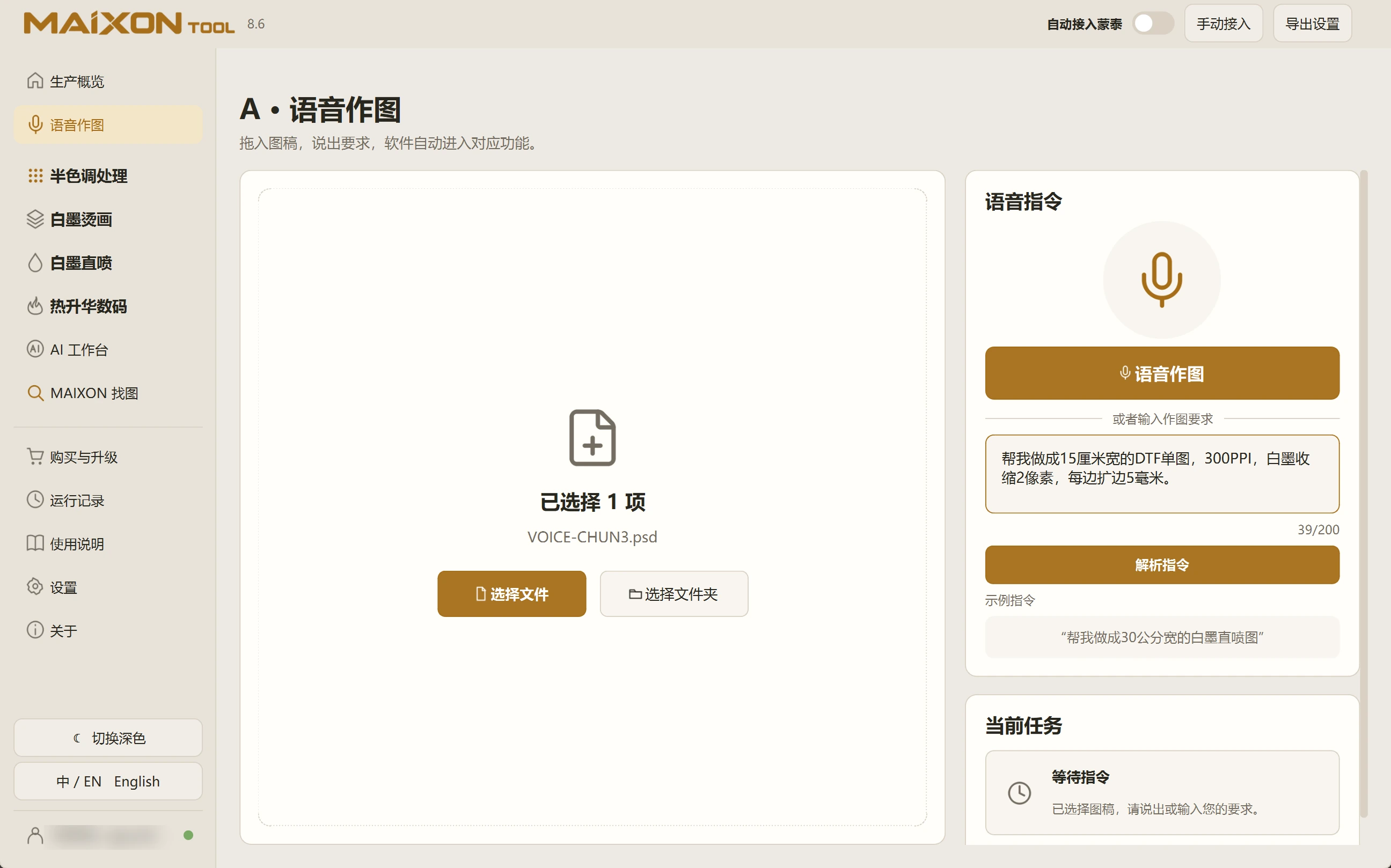
Select a file or folder
Speak or type a clear instruction
Review the task and production settings
Confirm, run and inspect the exported result
MAIXON IMAGE FINDER
Choose a library on a local or external drive, prepare its index, then add a reference image. Select the print region when needed, compare candidates and locate the original file.
Read the complete walkthrough →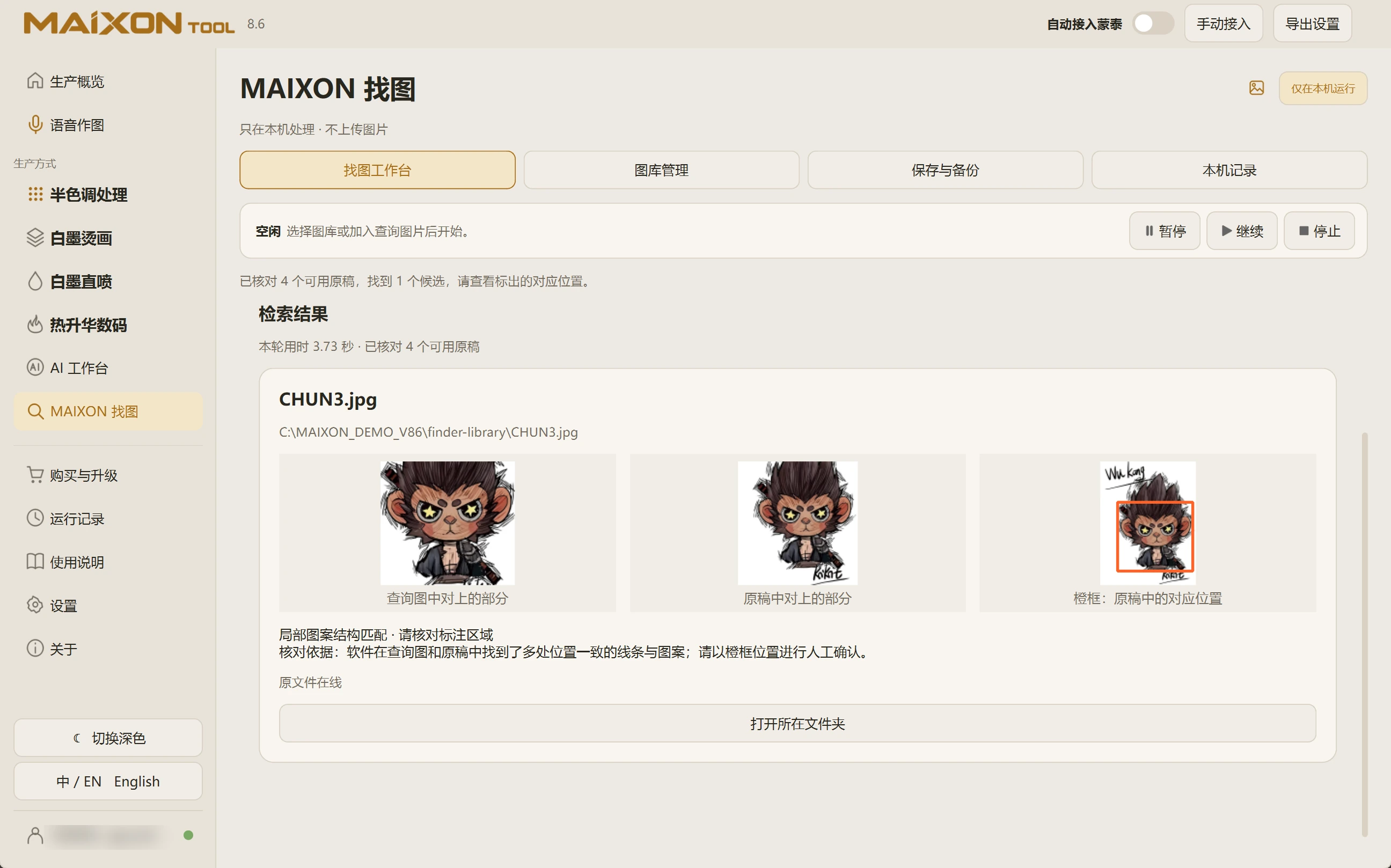
Choose a library folder or drive
Prepare the library; check changes on later visits
Load a reference and optionally select its print region
Search, compare candidates and locate the original
AI WORKBENCH
Extract prints, remove backgrounds, enhance detail, edit with instructions, expand, crop and vectorize from one workspace. Compare the result, save it, then continue into production.
Read the complete walkthrough →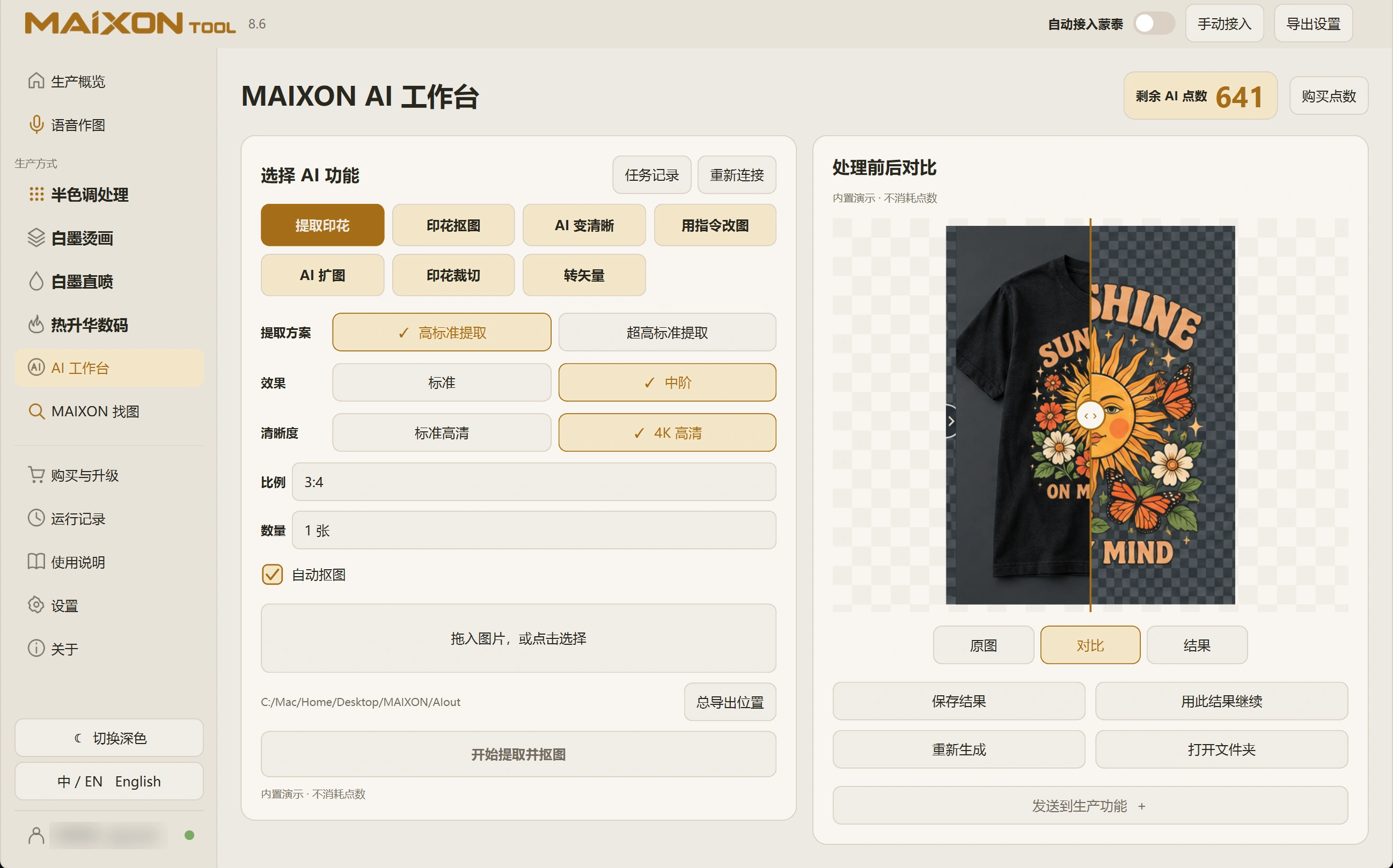
Choose a method and quality to extract artwork from clothing, objects or reference images. Enable automatic background removal when you need transparency.
Choose a tool and import artwork
Review the mode, quality, ratio and credit cost
Run the task and follow its progress
Compare, save or send the result to production
HALFTONE
Load artwork, choose a processing mode and adjust output width, dot density, effect and brightness. Compare the result, open it in Photoshop or continue into DTF or DTG.
Read the complete walkthrough →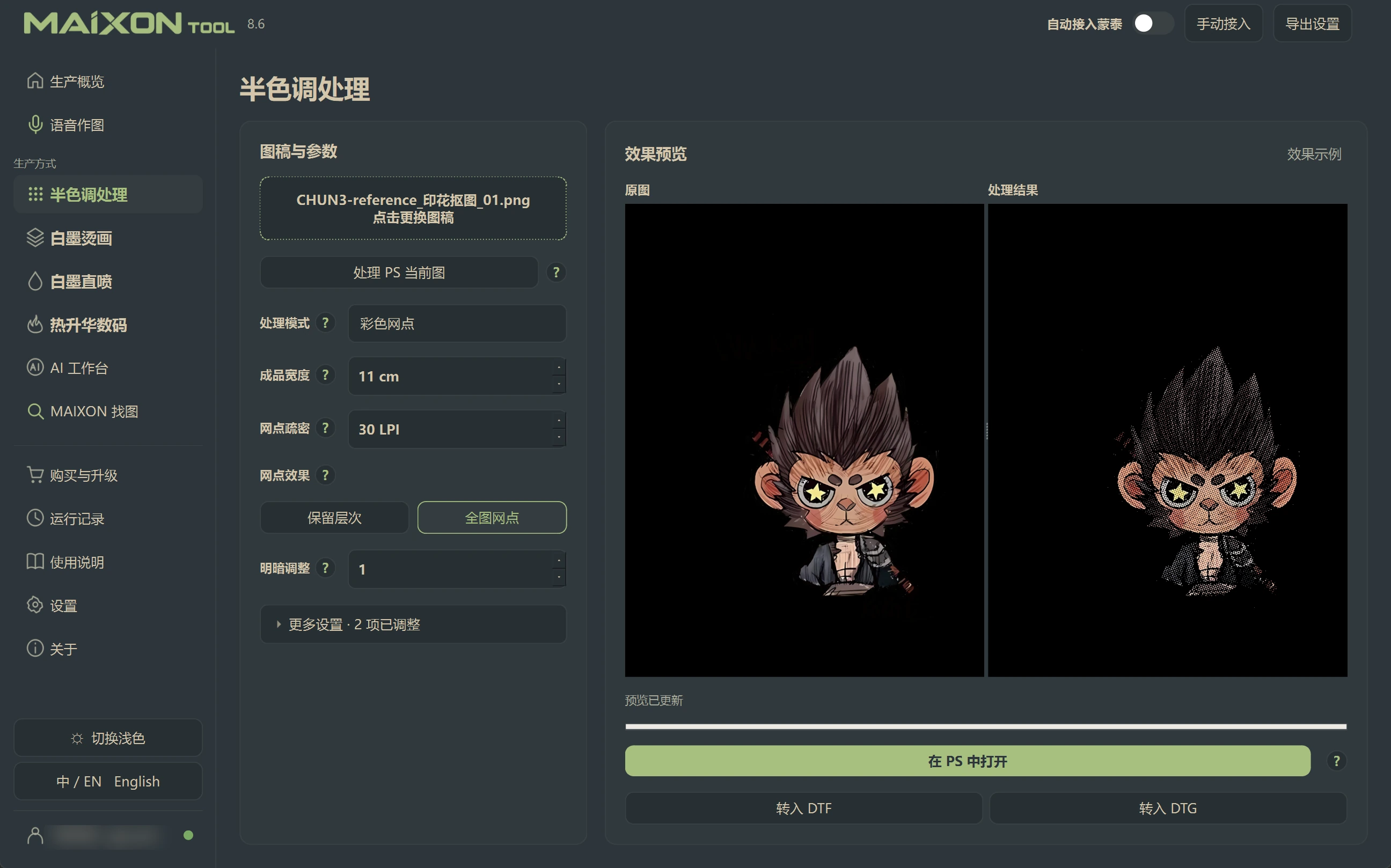
Load artwork or use the current Photoshop image
Set physical width, LPI and processing mode
Compare tone-preserving and full-image dots
Inspect in Photoshop or send to a production module
DTF
Single-artwork output, repeated layouts, multiple-image layouts and custom canvases cover different tasks. Confirm dimensions, resolution, W1 choke and margins, then process the Photoshop artwork and export.
Read the complete walkthrough →Open the artwork in Photoshop
Choose the appropriate artwork or layout mode
Set dimensions, resolution, W1 and margins
Run and inspect the TIFF, color artwork and white channel
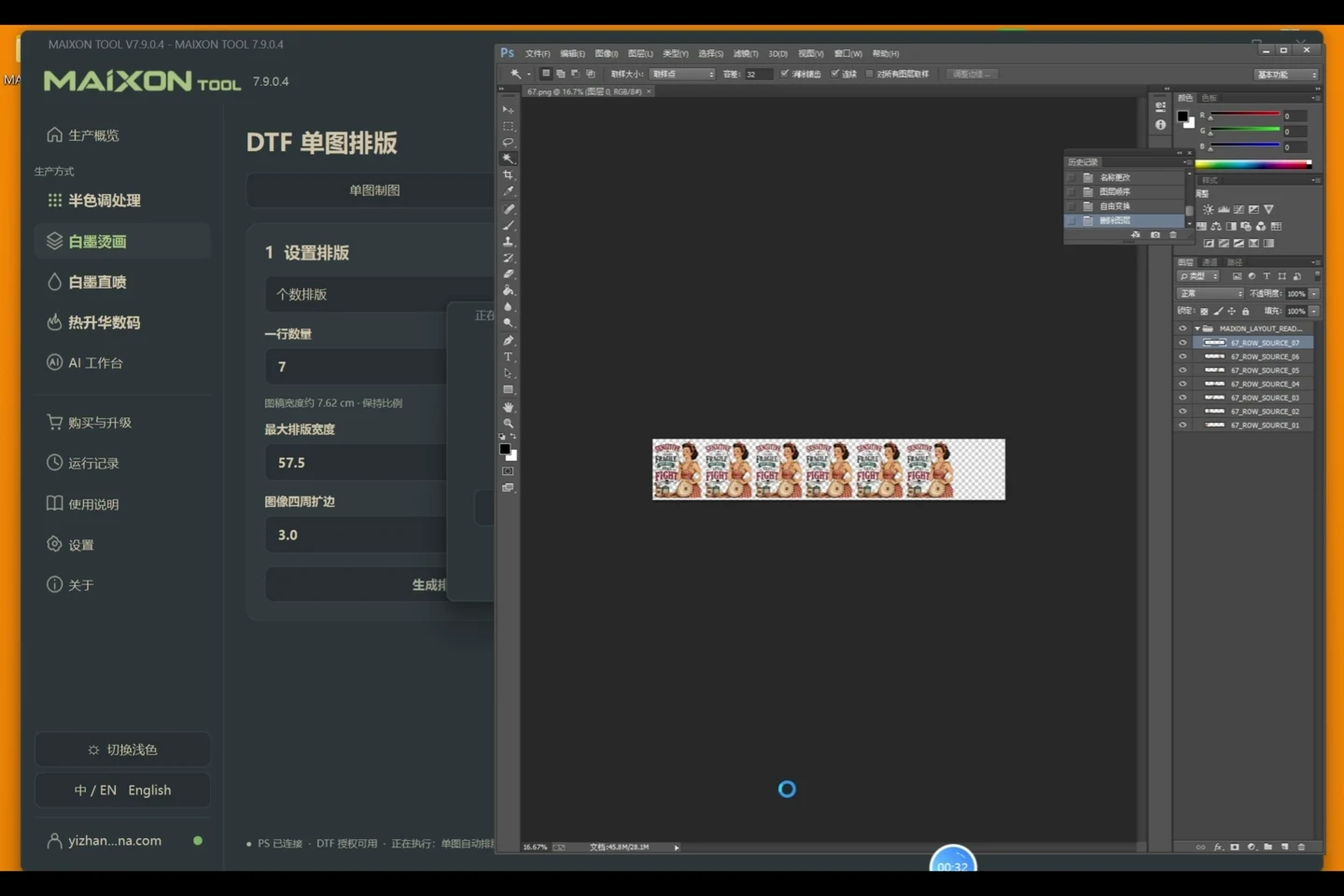 0:50
0:50Repeat one design by quantity, generate white ink and continue into MainTop. Ideal for orders with multiple copies of the same artwork.
Watch the workflow ↗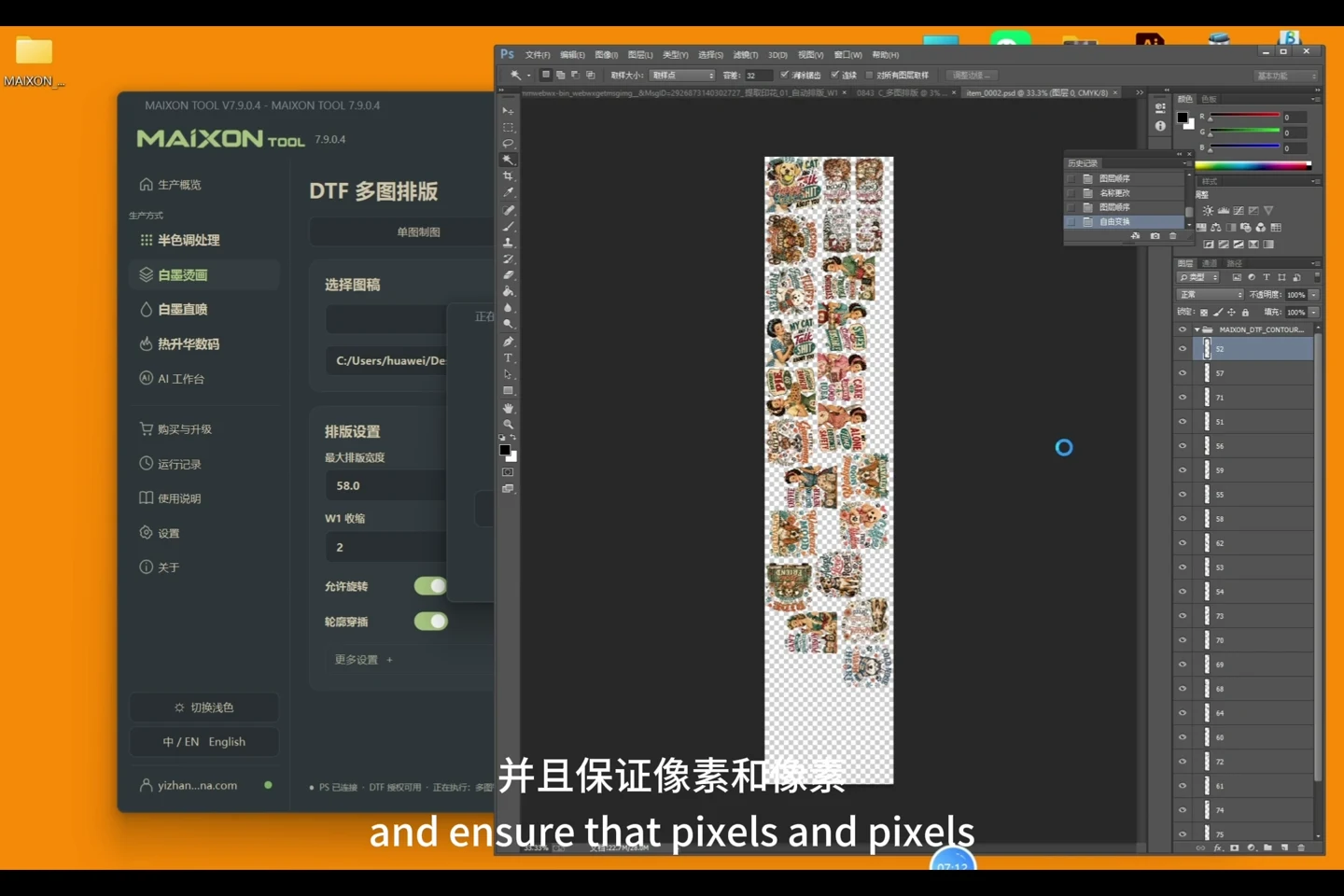 1:01
1:01Combine multiple outlines on one layout. Rotation and close nesting help make better use of the available space.
Watch the workflow ↗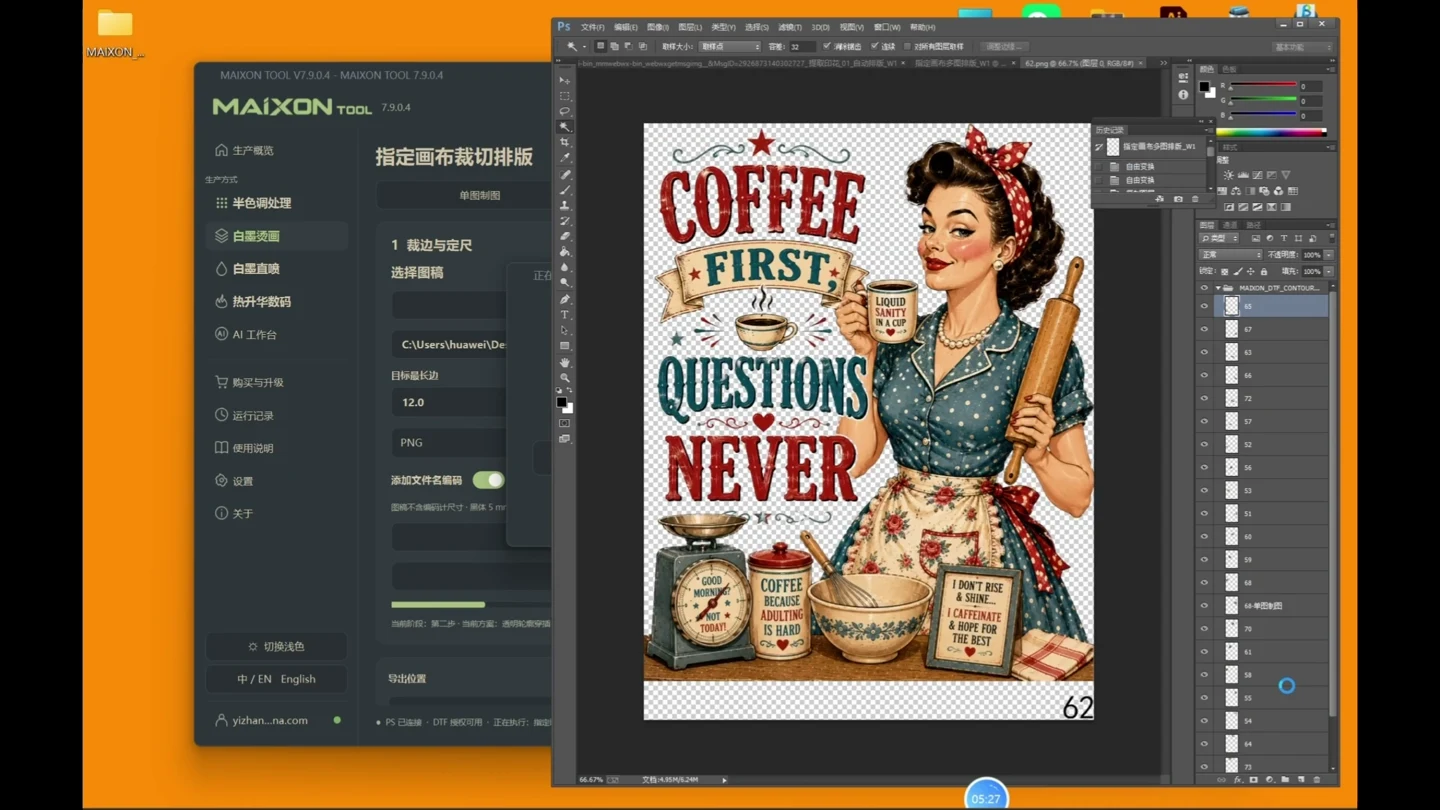 1:29
1:29Prepare artwork to a defined canvas, arrange multiple images and generate production files before continuing into MainTop.
Watch the workflow ↗DTG
Choose the fabric type, adjust white ink for regular and black regions, then review dimensions, channel naming, choke and margins. Process the current Photoshop artwork and export.
Read the complete walkthrough →Open artwork and choose the fabric type
Set white ink for regular and black regions
Review dimensions, W1 choke and edge margins
Run and inspect the color and white channels
SUBLIMATION
Set roll width, spacing, maximum roll height and resolution. Generate fast, balanced and material-saving options, then compare direction, cutting and production requirements before export.
Read the complete walkthrough →Choose PDF layout or PSD / PSB pieces
Load files and review width, spacing and rotation limits
Generate and compare layout options
Inspect pieces, cut lines and roll boundaries, then export
CUSTOM ROLL WIDTH
Set the usable roll width, such as 1820 mm, then arrange pieces with the spacing and direction you need.
AUTOMATIC CUT LINES
Add cutting outlines and choose a distinct color for the next production step.
TWO THEMES. ONE FAMILIAR WORKFLOW.
The same controls, in the same places. A clear light interface and a focused dark environment. Use the theme buttons below each image to explore both.
Hardware
Specialty processes, standard production and high-speed volume output each use accurate speed, interface and power specifications. The curing system connects post-processing into one continuous flow.
Specialty process platform
Designed for adhesive printing, foil finishing and specialty decorative transfers.
View product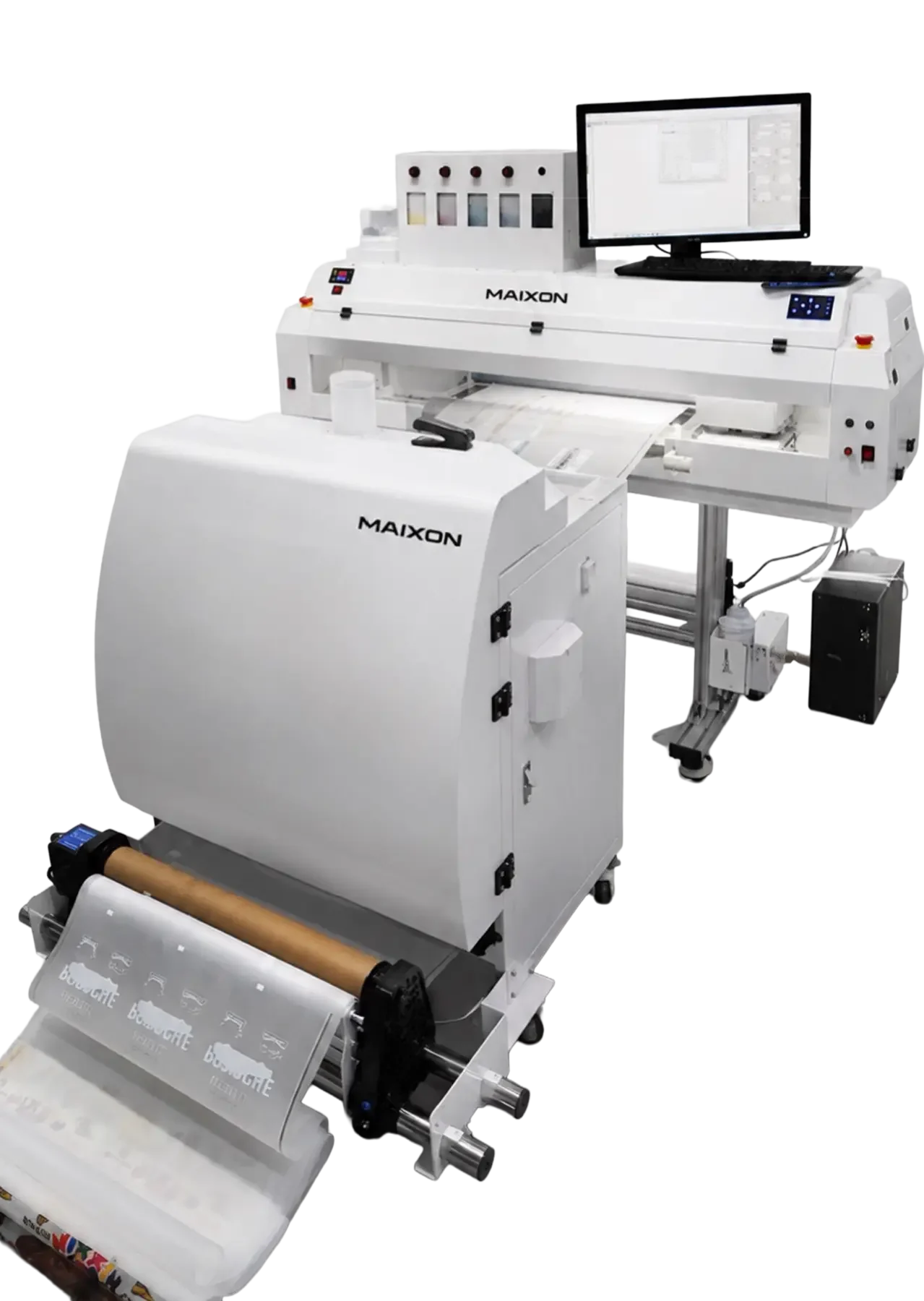
Standard DTF production platform
Dependable standard DTF production.
View product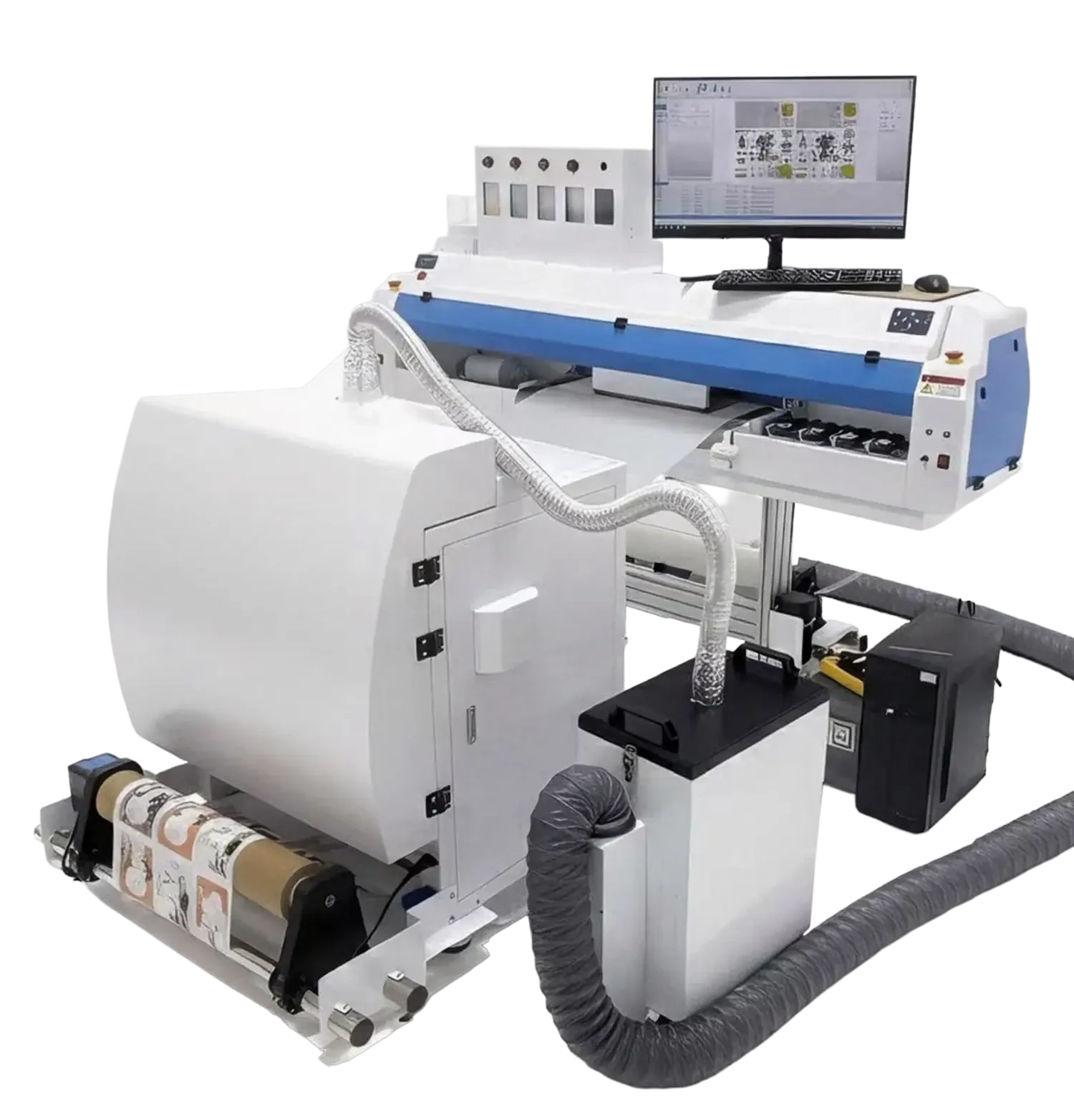
Eight-head high-speed production platform
Built for high-speed volume production.
View productOVEN604 connects powdering, curing, cooling and take-up while keeping finished sections available during production.
View product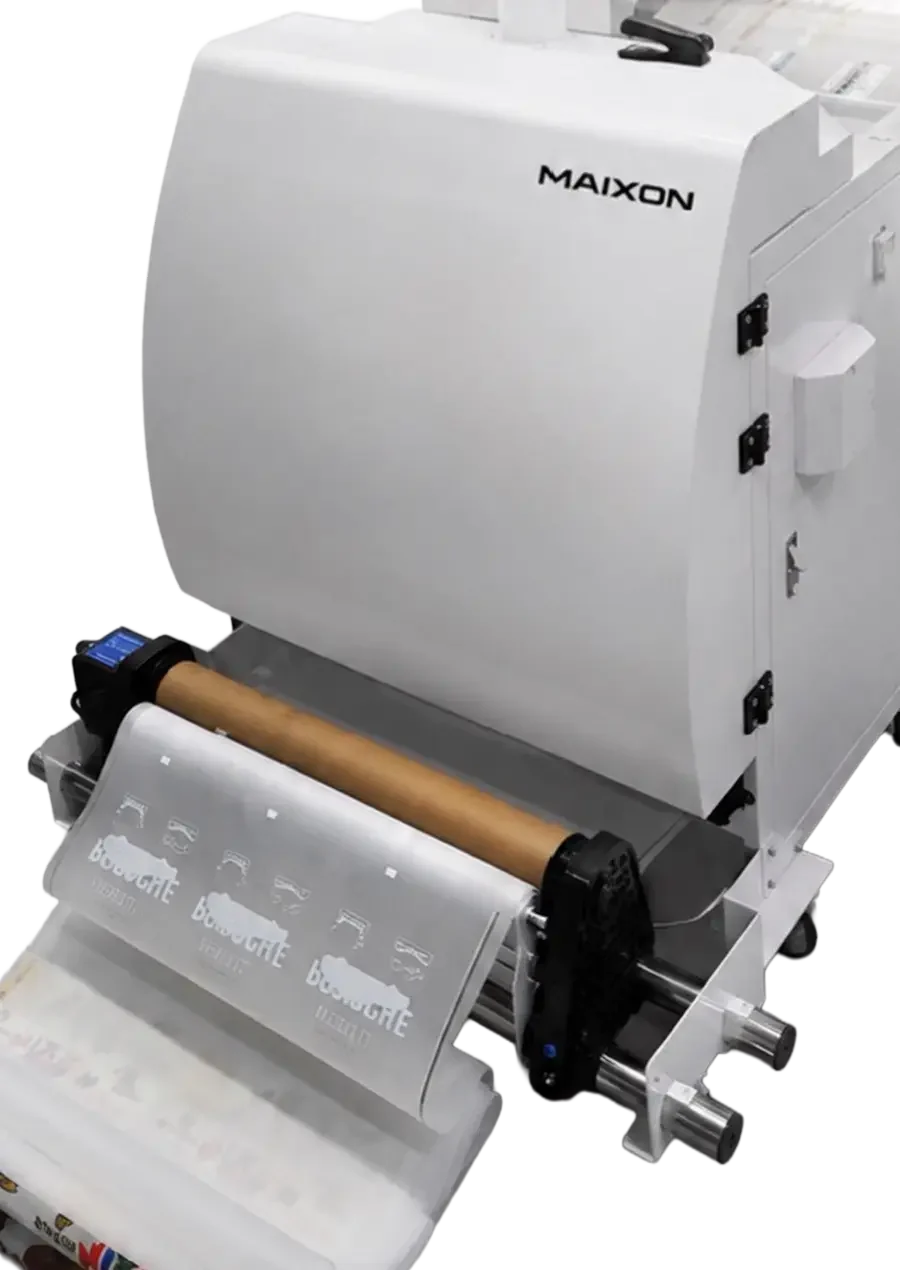
START YOUR WORKFLOW
Choose the installer for your Windows version, then follow the setup guide. Give your next artwork a clear path from preparation to output.
View current downloads ↗SUPPORT
Guides, licensing and technical support for each step of your workflow.